Free Microsoft Endpoint MD-102 Actual Exam Questions
Dumps Box (DumpsBox) offers up-to-date practice exam questions for MD-102 certification exam which are developed and validated by Microsoft subject domain experts certified in Microsoft Endpoint MD-102 . These practice questions are update regularly as we keep an eye on any recent changes in MD-102 syllabus, and when there is update our team quickly adjusts the questions. This commitment to providing the best quality exam prep material to certification aspirants is what makes DumpsBox.com the best certification exam prep website. On top of that, our strong, yet strictly moderated, community based feedback keeps the content clean and current. Each question has helpful community discussion that provides it extra perspective and introduces helpful resources for better exam preparation. This also saves students from other outdated practice questions or illicit exam dumps that can have adverse affects on career. Browse through our Microsoft Endpoint MD-102 exam questions and pass your exam on first try.
HOTSPOT - You have a Microsoft 365 E5 subscription. You create an app protection policy for Android device named Policy1 as shown in the following exhibit.  Use the drop-down menus to select the answer choice that completes each statement based on the information presented in the graphic.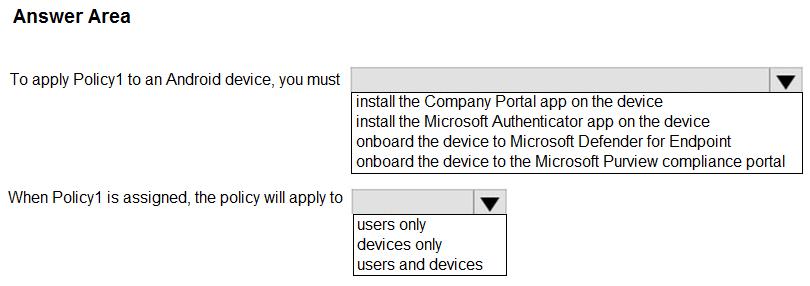
If the device isn’t enrolled or user not in Group1, no Notification1 for that device.
Only devices enrolled and belonging to Group1 users get Notification1, so others are out.
HOTSPOT - You have a Microsoft 365 E5 subscription that includes Microsoft Intune. You need to configure a compliance policy for the iOS/iPadOS platform. The solution must meet the following requirements: • Require jailbroken devices to be marked as noncompliant. • Mark devices without a password lock as noncompliant. Which compliance policy settings should you configure for each requirement? To answer, select the appropriate options in the answer area. 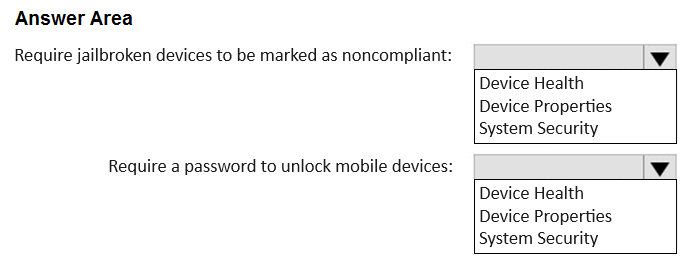
Exporting the GPO first is a must to capture the settings. Then analyze with Group Policy Analytics to see what Intune supports, and finally import it to Intune. That order keeps the process clean and accurate.
Export the GPO first to capture all settings. Then analyze it using Group Policy Analytics to check what’s supported. Importing before analyzing could cause missing or unsupported settings in Intune.
You have an Azure AD tenant that contains the devices shown in the following table.  Which devices can be activated by using subscription activation?
A. You need a way to automatically organize devices based on their OS version, and dynamic groups are made for that. The other options like device categories or corporate identifiers don’t offer filtering by OS version, so they wouldn’t help in deploying version-specific policies effectively.
Makes sense to me to go with A as well. Dynamic groups in Azure AD are designed to automatically include devices based on attributes like OS version, which fits this scenario perfectly. The other options don’t really offer that level of automated, version-based targeting. So yeah, A seems like the best first step here.
DRAG DROP - You have a Microsoft 365 subscription. The subscription contains computers that run Windows 11 and are enrolled in Microsoft Intune. You need to create a compliance policy that meets the following requirements: Requires BitLocker Drive Encryption (BitLocker) on each device Requires a minimum operating system version Which setting of the compliance policy should you configure for each requirement? To answer, drag the appropriate settings to the correct requirements. Each setting may be used once, more than once, or not at all. You may need to drag the split bar between panes or scroll to view content. 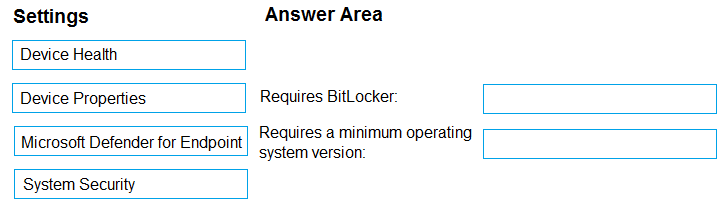
D imo, Initialization sounds like it might just set variables or prepare the environment, not handle actual disk formatting or partitioning tasks. Preinstall is where you’d expect those changes.
Doesn’t the Install phase just apply the image? Disk prep is definitely Preinstall (A).
DRAG DROP - You have a Microsoft 365 subscription that contains two users named User1 and User2. You need to ensure that the users can perform the following tasks: • User1 must be able to create groups and manage users. • User2 must be able to reset passwords for nonadministrative users. The solution must use the principle of least privilege. Which role should you assign to each user? To answer, drag the appropriate roles to the correct users. Each role may be used once, more than once, or not at all. You may need to drag the split bar between panes or scroll to view content. 
Probably D. Device2, Device3, and Device4 seem to cover the main platforms where app config policies work well—Android, macOS, and iOS. Device1 being Windows 10 might throw some people off, but Intune’s app config policies usually target mobile OSes more than desktop Windows. Also, iOS and macOS have improved support lately, so excluding those doesn’t feel right. So I’d go with D based on broader mobile support across those three devices rather than including Windows 10 here.
B/C? Device2 being Android definitely supports app config policies. Device1 is Windows 10, which also has solid support in Intune for these policies. Device3 and Device4 are macOS and iOS, which can be tricky—unless fully managed or using specific apps, these often don’t support all app config policies. So excluding those two seems safer, making B more likely than D or E. The question probably expects recognition that Windows and Android are the most straightforward targets for app configuration policies right now.
HOTSPOT - You have a Microsoft 365 E5 subscription that contains the security groups shown in the following table. 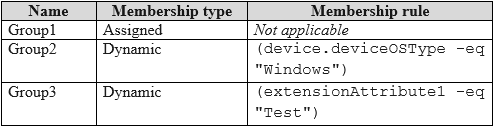 The subscription contains devices that run Windows 11, version 21H2 as shown in the following table.
  You have a feature update deployment profile named Deployment1 as shown in the following table.
  For each of the following statements, select Yes if the statement is true. Otherwise, select No.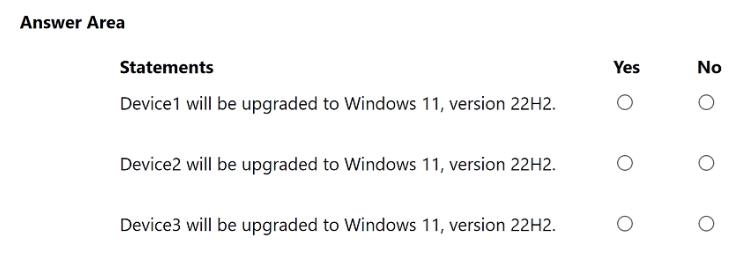
Disk encryption is definitely the right call for macOS FileVault since it's about encrypting the whole disk. For Windows 10, Credential Guard fits under Attack surface reduction, and the app control policy obviously lines up with Application Control.
For macOS FileVault, Disk Encryption fits best since it’s about encrypting the drive. Credential Guard is definitely under Attack Surface Reduction, so that’s for Windows Defender Credential Guard. Application Control goes to the Windows 10 app restriction part.
app to access and install published apps to enrolled devices. From the Microsoft Intune
admin center, you add a Microsoft Store app. Which two App information types are visible in
the Company Portal? NOTE: Each correct selection is worth one point.
I think F is personal since it’s listed as Azure AD registered, which usually means personal ownership. C and E look like corporate because they’re Azure AD joined, so Intune treats them as company devices.
I’m with the idea that device ownership classification mainly hinges on whether a device is Azure AD joined or just registered. Azure AD joined devices like B get treated as corporate because they’re fully managed and controlled by the organization. Registered devices like D don’t have that level of control, so they fall under personal. The other devices, depending on their join type and enrollment status, get categorized accordingly. Enrollment type matters but from what I’ve seen, Intune uses the join state as a key factor for this classification, especially in automatic enrollments.
You have a Microsoft 365 E5 subscription that contains 100 iOS devices enrolled in Microsoft Intune. You need to deploy a custom line-of-business (LOB) app to the devices by using Intune. Which extension should you select for the app package file?
Probably C. You need the Gather task first because it scans the hardware and collects all the info MDT needs for PnP detection. Without it, MDT won’t know which drivers to inject based on the hardware model. Just adding Gather lets the task sequence identify the device specifics before the Inject Drivers step kicks in. This matches what I’ve seen recommended when setting up hardware-specific driver injection in MDT.
C/D? Gather collects hardware info needed for PnP, but Validate checks if the system meets prerequisites before proceeding. If detection is the goal, adding Gather first makes more sense.
DRAG DROP - You have an on-premises Active Directory domain that syncs to Azure AD tenant. The tenant contains computers that run Windows 10. The computers are hybrid Azure AD joined and enrolled in Microsoft Intune. The Microsoft Office settings on the computers are configured by using a Group Policy Object (GPO). You need to migrate the GPO to Intune. Which three actions should you perform in sequence? To answer, move the appropriate actions from the list of actions to the answer area and arrange them in the correct order. 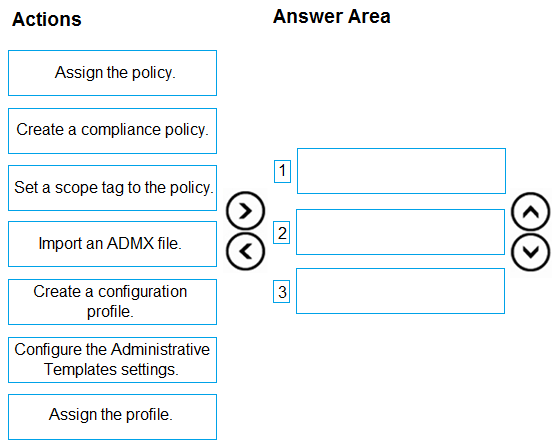
D, because APK files are directly deployed as line-of-business apps, not through stores.
Maybe D makes the most sense here since built-in or store apps aren’t direct APK deployments. Line-of-business apps usually cover these custom installs, especially when you have the APK ready to go.
HOTSPOT - You have a Microsoft 365 subscription. You plan to enroll devices in Microsoft Intune that have the platforms and versions shown in the following table. 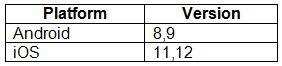 You need to configure device enrollment to meet the following requirements: Ensure that only devices that have approved platforms and versions can enroll in Microsoft Intune. Ensure that devices are added to Azure AD groups based on a selection made by users during the enrollment. Which device enrollment setting should you configure for each requirement? To answer, select the appropriate options in the answer area.
Policy applies only to targeted apps, so restrictions don’t affect all work profile apps.
I agree that option B fits well for the backup restriction, but I want to point out why option A doesn’t work here. The policy doesn’t disable screen capture globally; it only applies to managed apps. So, any app not targeted by the policy isn't affected. This means A is too broad. Also, option C talks about data transfer restrictions, which aren’t explicitly set in the policy shown. So, focusing on the backup restriction being blocked for targeted apps (B) is the best match based on the policy details.
table.
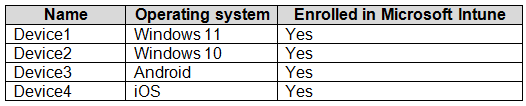
All devices have Microsoft Edge installed.
From the Microsoft Intune admin center, you create a Microsoft Edge Baseline profile
named Edge1.
You need to apply Edge1 to all the supported devices.
To which devices should you apply Edge1?
It’s A because configuration profiles in Intune let you set both the bandwidth limit and allow downloads from internet plus local network, which update rings (D) don’t fully cover. Group policies are less flexible here.
This one’s tricky but I’m ruling out C because Peer-to-Peer Group Policy settings don’t handle bandwidth limits well. D makes sense too but config profiles (A) are more flexible for all Delivery Optimization parameters. So I’d go with A.
You have a Microsoft Entra tenant named contoso.com. You purchase an Android device named Device1. You need to register Device1 in contoso.com. Solution: You use the Google Chrome app. Does this meet the goal?
Maybe A makes the most sense here since it lets users register their personal devices without full management or domain join, which fits the minimal control part. B or D would mean more company control.
It’s A, since Entra registered lets users keep control without full device management.
DRAG DROP - You have 100 computers that run Windows 10. You plan to deploy Windows 11 to the computers by performing a wipe and load installation. You need to recommend a method to retain the user settings and the user data. Which three actions should you recommend be performed in sequence? To answer, move the appropriate actions from the list of actions to the answer area and arrange them in the correct order. 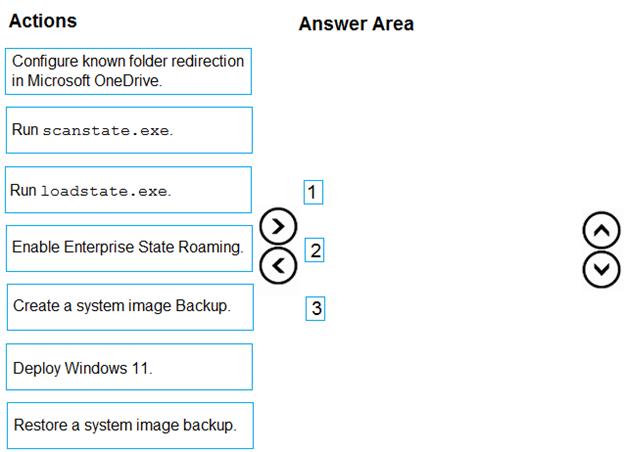
SkipBDDWelcome definitely has to go first to stop the welcome screen. Then disabling the gather step prevents it from showing prompts again, and finally enabling Auto-Join Domain makes sense to automate joining without user input.
I figured SkipBDDWelcome is definitely first because it’s designed to skip the welcome screen in MDT. After that, you want to disable the gather step since it can cause the wizard to reappear by prompting for info again. Lastly, enabling Auto-Join Domain makes sense to fully automate the process so no user interaction is needed. So my order would be: Enable SkipBDDWelcome, then Disable the Gather step, then Enable Auto Join Domain. That should prevent the welcome screen and any prompts from showing during deployment.
You need to implement mobile device management (MDM) for personal devices that run Windows 11. The solution must meet the following requirements: • Ensure that you can manage the personal devices by using Microsoft Intune. • Ensure that users can access company data seamlessly from their personal devices. • Ensure that users can only sign in to their personal devices by using their personal account. What should you use to add the devices to Azure AD?
Also, since GroupA can deploy new devices, their Autopilot profile permissions matter here.
I’m thinking the key here is the Intune connector on Server1. Since that’s installed, it should support hybrid Azure AD join for Autopilot devices. But the current Autopilot profile might still be set to Azure AD join only. So, they’ll need to update the profile to explicitly enable hybrid join for new devices like Device6. Otherwise, new computers won’t join on-prem AD automatically, which breaks the plan. Minimizing admin effort means using Autopilot with hybrid join set properly, not doing manual joins later.
From the Deployment Workbench, you open the New Task Sequence Wizard and select the
Standard Client Upgrade Task Sequence task sequence template.
You discover that there are no operating system images listed on the Select OS page as
shown in the following exhibit.

You need to be able to select an operating system image to perform a Windows 11 in-place
upgrade.
What should you do?
I think another angle is to consider that the ElevationRules1 policy is specifically targeting File1.exe with an automatic elevation type, which should override the default setting requiring user confirmation. So for devices in Group2, the user shouldn’t see any prompt. But for devices in Group1, since they don’t have the elevation rule assigned, they get the default policy requiring confirmation and justification. The tricky part is if a device is in both groups; it might depend on how Intune merges these policies, but usually, more specific rules (like one targeting a file) take precedence o
Devices in both groups likely get confirmation since policy settings can stack, not override.