Free Microsoft SC-200 Security Operations Analyst Actual Exam Questions - Question 14 Discussion
DRAG DROP You have an Azure Functions app that generates thousands of alerts in Azure Security Center each day for normal activity. You need to hide the alerts automatically in Security Center. Which three actions should you perform in sequence in Security Center? 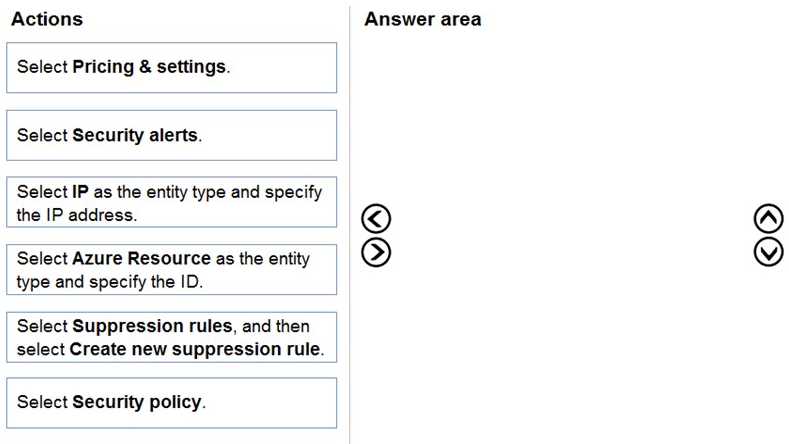
You can also try setting up an automation rule to filter these alerts based on severity or source, then apply a status update to hide them automatically. This avoids messing with custom detection rules.
I’d drop creating a custom alert rule first to target the noisy alerts, then configure alert suppression with that rule, and finally set auto-hide so those suppressed alerts don’t clutter the dashboard.
I’d start by creating a custom response rule to target those noisy alerts specifically. Then, set up alert suppression to filter them out based on the conditions in that rule. Finally, configure auto-hide so the suppressed alerts don’t clutter your view. This order makes sense since you need the rule first to identify alerts, then suppress, and lastly hide them automatically. Without the custom rule, suppression won’t know what to filter, and auto-hide only works on suppressed alerts.
I think another way to look at it is starting with the suppression part. If you just suppress alerts based on certain criteria right away, you might avoid creating too many unnecessary custom rules. Then, after suppressing those alerts, you can enable auto-hide to keep the Security Center clean. Finally, if needed, create a custom rule to fine-tune what gets suppressed or hidden. This order might help reduce the alert noise faster before adding complexity with custom rules.
I’d first define a custom alert rule to filter out the normal activity alerts. Then set up alert suppression to prevent them from spamming, and finally enable auto-hide to keep the Security Center clean.
I’d go with creating a custom detection rule first to catch the normal alerts, then enable alert suppression to stop them from triggering notifications, and finally set the auto-hide feature so those suppressed alerts don’t show up in the main view. This order makes sense because you need to identify the alerts before you can suppress or hide them.
I’d first create a custom alert rule to identify those normal activities, then configure it to auto-dismiss or suppress those alerts, and finally enable auto-hide so they don’t clutter the dashboard.
Haven't seen this exact one but it sounds familiar. I’d start by setting up alert suppression or creating an alert rule that filters out those normal activities. Then probably adjust the alert settings to auto-hide those specific alerts. Lastly, confirm that the changes actually applied so you don’t keep getting spammed with useless alerts. The key is automating the hiding, not just ignoring manually every time.